Finding and Connecting to a Device
Overview
In order to use the AKD2G, you must be able to communicate with the device using WorkBench and an EthernetEthernet is a large, diverse family of frame-based computer networking technologies that operate at many speeds for local area networks (LANs) connection. The AKD2G uses TCP/IP. Both the AKD2G and the PC must connect through this standard in order to communicate.
WorkBench Start Page
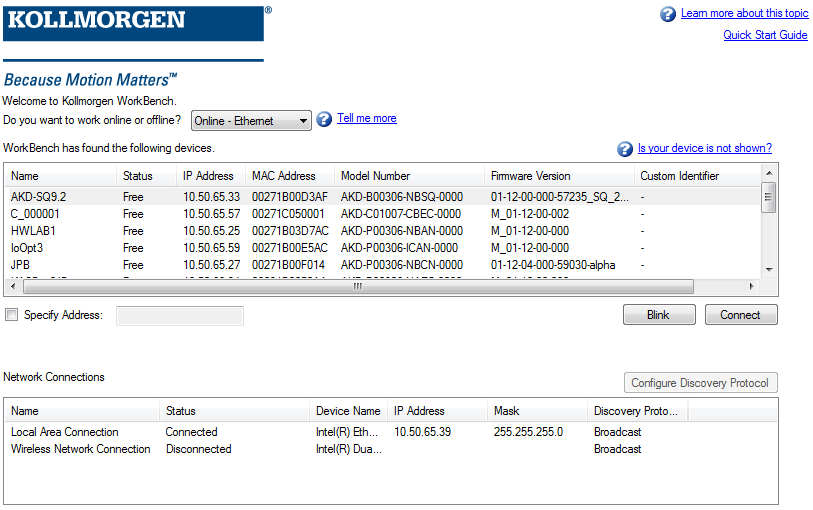
This view lets you select which AKD2G drive you wish to work with. You can work with a physical drive via the Ethernet port of your PC or with an Offline Emulation.
Online
Select Online - Ethernet to display a list of the devices that WorkBench has found on your local network. You can select one of these devices from the list and click Connect to continue. This will connect you to the device and you will be given the option to use the AKD Setup Wizard if your device is a drive.
| Button or Dialog Box |
Description |
|---|---|
|
Name |
The name that someone has given the drive. By default, the name is "No_Name". You can change the name by connecting to the drive and navigating to the top item in the navigation tree. |
|
Status |
Only one user can connect to an AKD2G at a time. If someone else is connected to the drive, then the status is Busy. If no one is connected to the drive, then the status is Free and you will be able to connect. |
|
IP Address |
This is the IP address of the drive. |
|
MAC Address |
This is the MAC address of the drive. The MAC addressA Media Access Control address (MAC address) is a quasi-unique identifier assigned to most network adapters or network interface cards (NICs) by the manufacturer for identification. If assigned by the manufacturer, a MAC address usually encodes the manufacturer's registered identification number is unique and is also printed on the label on the side of the drive. |
| Firmware Version | This is the version of firmware running on the device. |
| Custom Identifier | This is a custom identifier set by the user (see DRV.CUSTOMIDENTIFIER). |
|
Specify Address |
If your drive does not appear in the list, you can enter its IP address (e.g. 1.2.3.4) or a DNS name. You can optionally specify a port number different than the default port 23 by appending it. For example, 1.2.3.4:1000 would be port 1,000. |
|
Blink |
Clicking Blink will force the LCD display on the selected drive to report the IP address in a pop-up window for several seconds. |
Offline
See Offline Emulation.
Connect Using IP Address
Select Specify Address and type in an IP address to connect to a device on the network.

The AKD2G display shows the IP address of the drive periodically. The address appears as part of the cycle of information presented on the center horizontal bar.
Automatic (Dynamic) IP Addressing
Dynamic addressing is performed using the Dynamic Host Configuration Protocol (DHCP). To put the drive in DHCP mode, set IP.MODE to 2.
The device will acquire its IP address from an external DHCP server if present in the network. If a DHCP server is not present, the device will assume an Automatic Private IP address of the form 169.254.x.x.
If your PC is directly connected to the device, and set to obtain an IP address automatically in the TCP/IP settings, a connection will be established with both devices using compatible automatically generated addresses. It can take up to 60 seconds for a PC to configure an Automatic Private IP Address (169.254.x.x).
When first communicating with the device, conflicts might exist with other programs or devices connected to your computer that are competing for IP addresses. If you have a problem recognizing a device, then try turning off other devices (especially a wireless device or remote network connection). If you still have problems connecting with the device, refer to Troubleshooting Connection and Communication Problems.
Static IP Addressing
Static IP addressing can be accomplished using four parameters:
IP.MODE: set Mode=1for static IP
IP.ADDRESS: specifies the address of the drive
IP.SUBNET: specifies the subnet mask of the drive
IP.GATEWAY: specifies the gateway IP address
Example: Set drive to use static IP of 192.168.0.1
--> IP.MODE 1
--> IP.ADDRESS 192.168.0.1
--> IP.SUBNET 255.255.255.0
--> IP.RESET
Once the IP address has been properly configured using these parameters, the IP.RESET command can be issued to apply the settings and assign the IP address. These settings must be saved to the drive (DRV.NVSAVE ) to remain in effect after power has been removed and restored.
Communication View
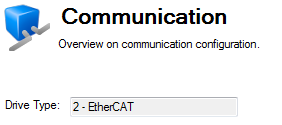
Once the device is connected, the Communication View will display the device type as seen below.
|
Stay Connected with Kollmorgen       
|
Copyright © 2018 Kollmorgen |

|